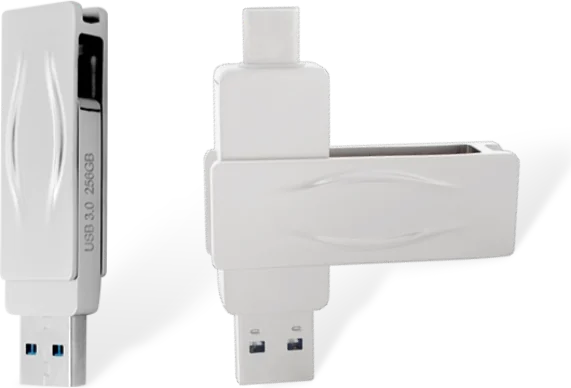
A portable SSD promising "2,000 MB/s" can deliver less than half of that on many laptops, with nothing wrong with the drive. The limit is almost always the USB link between drive and computer. USB naming has changed several times, the same port shape can carry very different speeds, and the slowest part of the chain sets the pace. Understanding those links is the fastest way to buy the right drive, or to recommend the right one to customers.
One standard, many names
The USB Implementers Forum has renamed the same speeds more than once, so one drive may be described three different ways on different spec sheets. Since 2022 it recommends simple speed-based names on packaging.
| Speed | Current logo name | Technical name | Older names |
|---|---|---|---|
| 480 Mbps | USB 2.0 | USB 2.0 Hi-Speed | — |
| 5 Gbps | USB 5Gbps | USB 3.2 Gen 1 | USB 3.0, USB 3.1 Gen 1 |
| 10 Gbps | USB 10Gbps | USB 3.2 Gen 2 | USB 3.1 Gen 2 |
| 20 Gbps | USB 20Gbps | USB 3.2 Gen 2x2 | — |
| 20 / 40 Gbps | USB 40Gbps | USB4 (20 or 40 Gbps) | — |
| 80 Gbps | USB 80Gbps | USB4 Version 2.0 | — |
The "x2" in Gen 2x2 means two 10Gbps lanes used together. It only exists over USB-C, and it is a different thing from USB4, which also reaches 20 or 40Gbps but uses a different protocol.
From Gbps to real MB/s
Link speeds are quoted in gigabits per second, while drives are rated in megabytes per second. After encoding and protocol overhead, these are realistic best-case figures for a fast NVMe-based portable SSD:
| Link | Realistic sequential speed | Suitable drive tier |
|---|---|---|
| USB 2.0 | ~35–40 MB/s | Flash drives for documents only |
| USB 5Gbps (Gen 1) | ~400–450 MB/s | SATA-based portable SSDs (~400–550 MB/s class) |
| USB 10Gbps (Gen 2) | ~1,000–1,050 MB/s | Mainstream NVMe portable SSDs (~1,000 MB/s class) |
| USB 20Gbps (Gen 2x2) | ~2,000 MB/s | High-end portable SSDs (~2,000 MB/s class) |
| USB4 / Thunderbolt 40Gbps | ~3,000–4,000 MB/s | USB4 / Thunderbolt NVMe enclosures |
Every link is backward compatible. A 2,000 MB/s drive works on a 5Gbps port, but only at about 400 MB/s.
USB-C is a connector, not a speed
A USB-C port tells you the shape of the plug, not the speed behind it. USB-C ports range from USB 2.0 (common on budget phones and some tablets) to 40Gbps USB4. Check the computer's specification or the small logo next to the port: an SS 10 or "10Gbps" mark, a lightning-bolt Thunderbolt logo, or the USB4 logo.
The Gen 2x2 trap
USB 20Gbps (Gen 2x2) delivers excellent speed, but relatively few computers support it. It is mostly found on certain desktop motherboards and add-in cards rather than laptops. Most laptops, and Mac computers, run a Gen 2x2 drive at 10Gbps, around 1,000 MB/s. USB4 and Thunderbolt ports also generally run a Gen 2x2 drive at 10Gbps, because Gen 2x2 is not part of the USB4 tunnelling model. Before paying for a 2,000 MB/s drive, confirm that the computers it will be used with have a genuine 20Gbps port.
Cables, hubs and docks
- Use the supplied cable. Many USB-C cables, especially charging cables, carry only USB 2.0 data. A cheap cable can quietly drop a fast drive to around 40 MB/s.
- Shorter is better for high speeds. 20Gbps and 40Gbps links are sensitive to cable length and quality.
- Hubs share bandwidth. A drive on a hub or dock competes with displays, network adapters and other devices, and many hubs only offer 5Gbps downstream ports.
- Front-panel ports on desktops are often slower than the rear I/O ports on the motherboard.
What else affects portable SSD performance
- Internal drive. Faster portable SSDs use an NVMe SSD and a USB-to-NVMe bridge controller; entry models use SATA. The bridge must support the link speed on the box.
- UASP and TRIM. USB Attached SCSI Protocol lowers overhead compared with the old bulk-only mode, and TRIM support keeps write speed consistent over time. Both are supported by modern operating systems.
- Sustained writes. Like internal SSDs, most portable SSDs write to a fast SLC cache first. Large video copies can slow down once it fills, so check sustained-write figures for video work.
- Heat. Small sealed enclosures can throttle during long transfers. Metal housings and thermal pads help.
- File system. exFAT works on Windows and macOS. Very large numbers of small files transfer far below headline speed on any drive.
Which portable SSD tier should you choose?
| Typical computer / use | Best-value tier |
|---|---|
| Older laptops, USB-A 5Gbps ports, backups and document transfer | ~400 MB/s class (5Gbps) |
| Most current laptops, MacBooks, everyday video and photo work | ~1,000 MB/s class (10Gbps) |
| Desktops with a verified 20Gbps USB-C port, large video projects | ~2,000 MB/s class (20Gbps) |
| Thunderbolt or USB4 workstations, editing directly from the drive | USB4 / Thunderbolt NVMe enclosure |
UNITRENTH offers portable SSDs in roughly 400, 1,000 and 2,000 MB/s performance tiers, so buyers can match drive speed to the ports their customers actually use. For the drives inside, see our NVMe vs SATA guide.
Frequently asked questions
Is USB 3.2 Gen 1 the same as USB 3.0?
Yes. USB 3.0, USB 3.1 Gen 1 and USB 3.2 Gen 1 all describe the same 5Gbps speed, now marketed as USB 5Gbps.
Why is my 2,000 MB/s portable SSD only reaching about 1,000 MB/s?
Most likely your port is 10Gbps (USB 3.2 Gen 2) or a USB4/Thunderbolt port that runs Gen 2x2 drives at 10Gbps. A genuine 20Gbps USB 3.2 Gen 2x2 port is needed for about 2,000 MB/s.
Does every USB-C port support fast transfers?
No. USB-C is only the connector shape. Some USB-C ports and many cables only support USB 2.0 data at 480Mbps.
Can I use a USB 10Gbps drive on a USB 5Gbps port?
Yes. USB is backward compatible, so the drive works normally at the lower speed of about 400 to 450 MB/s.
Need a quote or samples?
Tell us your platform, volume and timeline — we reply within two business days.
Get a quote → View products